Monday, April 14, 2014

Vertigo: so that's what it's like

My mom has gotten vertigo spells for the past 20 years or more. As she is incredibly detailed when it comes to her personal health, she has described to me every single episode and what might have caused it to happen. Quite often it's a sudden head turn, one of those unconscious moves you make when driving; sometimes it's having your head at an odd angle for an extended period of time, which happens when she gets her hair washed in the salon. Whenever it happens she usually goes to the hospital because she's old and falling has serious consequences, plus she is often unsure if she's having a heart attack. (To which I often say, Mom, if you had enough time to contemplate if you're having a heart attack, you probably aren't.)

So this morning I got to experience a bit of the joy of vertigo. And because I'm my mother's daughter, I'll describe it in loving detail.

Having been on the receiving end of these stories, I almost instantly understood what had happened. I was lying in bed, having just woken up, rolled over to kiss my sweetie, and suddenly felt a bit odd inside my right ear. Almost an itchy feeling, definitely deeper than the canal, and above it, and as I am now looking at pictures of the inner ear, in the region of the semicircular canal.
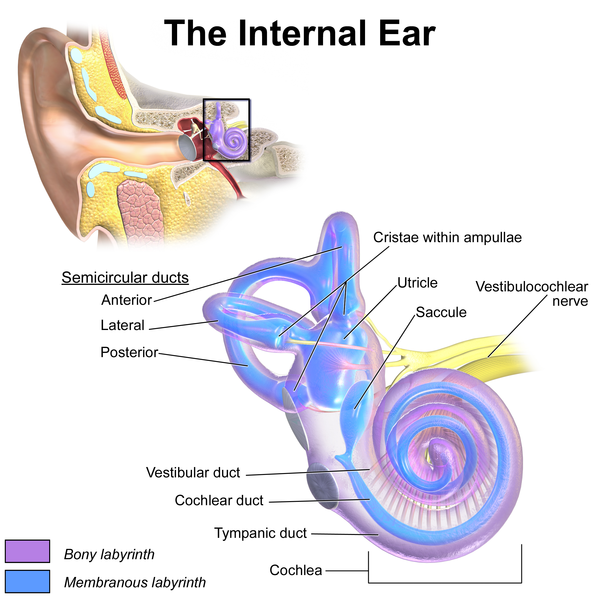
I opened my eyes and things were moving like an animated GIF loop, fortunately not too fast. I sat up and it didn't go away, and that's when I said "Oh crap, I'm having vertigo like my mom gets." I felt clammy and slightly nauseated. After a few minutes holding still (except for my mouth, which was cussing out my mother for passing this weakness on to me), the spin decreased to a twitch. My guts were wanting to get rid of anything offensive, and did, fortunately in the down direction.

Staring straight ahead was okay. Almost any other direction and the reaction was surprisingly immediate: clamminess and nausea. And it would go away almost as fast when I looked in a "safe" direction. But this was not a gut problem, it was neurological. Looking at the tablet seemed okay, but I couldn't use the computer -- a little too much head tilt there, I think.

I'd researched the Epley maneuver for mom in the past, but was feeling too trembly in the guts to want to try it. When you're feeling this way, the last thing you want to do is something with high potential to make a terrific mess to clean up.

Sitting up in bed seemed to be the best thing for staying un-dizzy and mitigating the chills. My mom had been advised to sit still and stare at a fixed point, so I focused on the opposite wall.  Slowly and gently I started tracking left and right, trying to increase the safe zone. It seemed to work. I pointed my gaze a foot or two higher on the wall and did the same. Repeat, raising a foot or two each time. My toes felt a little achy and I spent some time massaging them. I eventually graduated to turning my head, too. I don't know how long I spent doing this, but somewhere near the end of it, Best Boyfriend Ever came by to check on me, offered to take me to the hospital, and when I said I'd be okay, left for work. Out of everyone I've ever known intimately enough, BBE takes the second-longest time to get ready for work: two hours is average. (My mom is the first.)

As you might imagine from all this back and forth, I was also getting very sleepy.


I was pretty sure I was sleeping sitting up, in between tracking. We had had a normal amount of sleep but I was just wiped out. I carefully lay flat, not sure if this would be troublesome. It wasn't.

I sacked out for several hours. When I woke up things were 100% better. I'm taking it easy and slow this afternoon but I seem to be able to point in most any direction safely. I still itch a little bit in the ear, but I think the crystals are by and large back where they belong.

Tuesday, January 14, 2014

Done with the paint app

There was a trip to Germany for the boyfriend to attend a conference, and Christmas, and New Year's, so not a whole lot got done between the 15th and the 2nd. But since then it's been chin-rubbing and poking and growling, and finally the app was finished. I still need code review but right now it does just about everything I want it to.

The sticky bit was adding text. I'd originally set up the button to open an alert dialog where you could enter your text, and select a font size via a slider. That was visually jarring and functionally awkward because you couldn't really tell how large to make your text in relation to the drawing.  You would only know after placing it, so you'd have to undo and try again if you found it the wrong size.

So I found a bit of code that would include an actionable graphic (an image of an X to clear the text) in an EditText. From that starting point I made the EditText so it would be placed directly on the drawing surface, and it could be resized by dragging at the corner graphic. Clicking the checkmark graphic at the top cements the text in place. It's much smoother than having a dialog box.

After that, some code to save the drawing in JSON so it can be retrieved later.

For the next trick I want to put advertising in it. I'd like have a free-with-ads version, and a paid no-ads version. Don't hurt me, please. I'm not crazy about doing it either.

So to distract you from that last paragraph, here's the code for an edittext that can be moved around and the font resized by dragging.  Both the drawing and the EditText are children of a Viewgroup.

public class MovableEditText extends EditText {

    // 2 drawables: an OK and a resize handle
    private Drawable closeImg = getResources().getDrawable(R.drawable.text_ok);
    private Drawable resizeImg = getResources().getDrawable(R.drawable.text_resize);
    private long timeFingerDown;
    public InputMethodManager imm;
    private App app;
    private boolean resizing;
    private TextCompletedListener textListener;
    private boolean finished = false;
    private float startDeltaLeft;
    private float startDeltaTop;

    float leftMargin = 100;
    float topMargin = 100;

    public MovableEditText(Context context) {
        super(context);
        app = (App) context.getApplicationContext();
        imm = (InputMethodManager) context.getSystemService(Context.INPUT_METHOD_SERVICE);
        init();
    }

    @Override
    public void scrollTo(int x, int y) {
        super.scrollTo(0, 0);
    }

    @Override
    public boolean onTouchEvent(MotionEvent event) {
        switch (event.getAction()) {
            case MotionEvent.ACTION_DOWN:
                timeFingerDown = event.getEventTime();
                // Remembers where you grabbed the text
                startDeltaLeft = event.getX();
                startDeltaTop = event.getY();
                setCursorVisible(true);
                return true;

            case MotionEvent.ACTION_UP:
                resizing = false;
                // clicking on the OK checkbox
                if (event.getY() < getPaddingTop() + closeImg.getIntrinsicHeight()) {
                    MovableEditText.this.okButtonClick();
                }
                // otherwise, act like a proper edittext
                if (event.getEventTime() - timeFingerDown < 200 && !finished) {
                    super.onTouchEvent(event);
                }
                return false;

            case MotionEvent.ACTION_MOVE:
                if (event.getX() > getWidth() - getPaddingRight() - resizeImg.getIntrinsicWidth()) {
                    resizeBox(event);
                    // we touched the arrow, so we are resizing the box (i.e. increasing font size)
                    resizing = true;
                    return true;
                }
                if (event.getEventTime() - timeFingerDown > 200 && !resizing) {
                    // we are moving the box; close the keyboard
                    imm.hideSoftInputFromWindow(getWindowToken(), 0);
                    moveBox(event);
                }
                return true;

            case MotionEvent.ACTION_CANCEL:
                resizing = false;
                return false;
        }
        return true;
    }

    public void setTextCompletedListener(TextCompletedListener l) {
        textListener = l;
    }

    private void init() {
        setMinimumHeight(closeImg.getIntrinsicHeight()*2);
        setMinimumWidth(closeImg.getIntrinsicWidth()+resizeImg.getIntrinsicWidth() *2);
        // Set bounds of the Clear button so it will look ok
        closeImg.setBounds(0, 0, closeImg.getIntrinsicWidth(), closeImg.getIntrinsicHeight());
        resizeImg.setBounds(0, 0, resizeImg.getIntrinsicWidth(), resizeImg.getIntrinsicHeight());
        // There may be initial text in the field, so we may need to display the  button
        showOkButton();
        //if text changes, take care of the button
        this.addTextChangedListener(new TextWatcher() {
            @Override
            public void onTextChanged(CharSequence s, int start, int before, int count) {
                MovableEditText.this.showOkButton();
            }

            @Override
            public void afterTextChanged(Editable arg0) {
            }

            @Override
            public void beforeTextChanged(CharSequence s, int start, int count, int after) {
            }
        });
    }

    private void moveBox(MotionEvent event) {
        leftMargin += (int) (event.getX() - startDeltaLeft);
        topMargin += (int) (event.getY() - startDeltaTop);
        requestLayout();
    }

    // the following is to be used by drawview when resizing and panning
    public void externalMove(float dragX, float dragY) {
        leftMargin = (int) (leftMargin + dragX);
        topMargin = (int) (topMargin + dragY);
        requestLayout();
    }

    private void resizeBox(MotionEvent event) {
        setWidth((int) event.getX());
        setHeight((int) event.getY());
        resizeText();
    }

    // change the text size to whatever will fit in the box
    private void resizeText() {
        String[] multiline = this.getText().toString().split("\n");
        float adjustedHeight = (getMeasuredHeight()/multiline.length - getCompoundPaddingBottom() - getCompoundPaddingTop())/2;
        setTextSize(adjustedHeight);
    }

    // if there is text, add the OK button
    void showOkButton() {
        if (this.getText().toString().equals("")) {
            // remove the clear button
            this.setCompoundDrawables(this.getCompoundDrawables()[0],null, resizeImg, this.getCompoundDrawables()[3] );
        } else {
            //add clear button
            this.setCompoundDrawables(this.getCompoundDrawables()[0], closeImg, resizeImg, this.getCompoundDrawables()[3]);
        }
    }

    void okButtonClick() {
        MyViewGroup viewGroup = (MyViewGroup) getParent();
        // get the text, get the size, get the position, create a Stroke from it
        // locate this view in the viewgroup's coordinate system
        // the screen coordinates minus the location of the MET
        Float deltaL = getLeft() - getScrollX() - viewGroup.dv.getCenterX();
        Float deltaB = getTop() - getScrollY() + getBaseline() - viewGroup.dv.getCenterY() ;
        // viewcenterxy are the canvas coordinates
        Float dvViewCenterX = viewGroup.dv.getViewCenterX();
        Float dvViewCenterY = viewGroup.dv.getViewCenterY();
        Float scaleFactor = viewGroup.dv.getScaleFactor();
        // translate that delta to the canvas's coordinates
        Float translatedL = dvViewCenterX + (deltaL/scaleFactor);
        Float translatedB = dvViewCenterY + (deltaB/scaleFactor);

        if (this.getText().toString().length()>0) {
            app.setText(getText().toString());
            app.setTextSize(getTextSize()/2);  // i do not know why it keeps doubling the size
            app.strokeInProgress = new TextStrokeBuilder(app, translatedL, translatedB, scaleFactor);
            app.finishStroke();
        }
        // tell viewgroup to delete the EditText
        textListener.onTextCompleted();
        finished = true;
        imm.hideSoftInputFromWindow(getWindowToken(),0);
    }

    public void setLeftMargin(float left) {
        leftMargin = left;
    }
    public void setTopMargin (float top) {
        topMargin = top;
    }
}

Thursday, December 12, 2013

getting close to done

I finally managed to build a resizable EditText box. So you click on the Add Text button, and a little grey box pops up onscreen on top of your drawing. It's semi-transparent so you can see what's going on below. The keyboard pops up and you type your stuff. A double-headed arrow icon on the right: left/right will increase the width of the box, up/down will change the size of the font. Touch the checkmark icon at the top and the text will be placed. Press & hold on the text itself will let you drag it around to where you want it.

This is getting nice. It's reasonably smooth and intuitive.

There are several things I need to fix to get it fully working right. At the moment it doesn't place the text where I want, and the size is being measured in actual pixels, so if you're zoomed out on the page, it's freaking teeny tiny. These are scaling issues. The other bit is gracefully deleting the EditText when finished -- I need a hook or a listener or something that the EditText can use to tell the app it's done.

Sunday, December 1, 2013

More Play Store piracy


I wrote about this back in April. I do not browse the Play Store all that often -- once a month, maybe a bit more -- and I found another one a couple days ago. The game is the property of Mateusz Skutnik, an artist and Flash programmer lauded by escape gamers for his atmospheric, brain-twisting Submachine series.

I notified Mateusz and he confirmed that the developer did not have permission to port his work to Android. He'll be taking action on it.

Because the games they steal are by different developers, pirates' offerings are going to be very diverse in visual style. A developer making his or her own apps will have a certain style, probably more clearly seen in games than other apps. Widgets such as control buttons and menu styles will be re-used, and the flow from one activity to the next will likely have the same feel.

The ad load of a pirated game will be high. That's one thing that you can count on, because the game is free and this is the sole means of revenue.

It would be interesting if Google, with its advanced abilities to search images for faces and general concepts, applied this to the Play Store.

Sunday, November 17, 2013

working on a new app

A few days before Halloween Brian settled on his "costume": a bow tie.

Not just any ol' bowtie, but

><  > the Bowtie of the Future <  ><

It would be changeable at a touch. It would set the background to the shirt behind it. It would take photos. It would have a +1 button.

In about 6 hours we cobbled together a bowtie image that would cycle through the Google colors and wiggle when clicked, had a fake +1 button and a counter on the left, a subtle (Google design always runs subtle) "BETA" on the right. "Adjusting" the tie, i.e. rotating the phone back and forth, would take a photo.

There were a bunch of little quirky things to code for. Because of the front camera's placement, the entire app had to be displayed upside-down from the normal landscape mode, otherwise the camera would have been obscured by his collar. Photos taken by the camera resulted as upside-down, but flipping is easy. Since he's tallish, the camera tended to take photos of the top edge of the opposite wall, and I experimented with carving wedges from packing foam until we decided it was more trouble than it was worth. Brian was dissatisfied with the shake code I'd found and fine-tuned it to use the gyroscope and a specific sequence  of motions to listen for.

And of course we didn't actually use the back camera to divine the clothing behind it. Brian picked a shirt, I slapped it on the scanner, and turned it into the background image.

But that isn't the 'new app' of the post title.  I've started a paint program. Nothing that isn't the same as quite a few paint apps out there, and in fact it may be simpler than most. But it's partly for the experience and partly because I have an idea that will make it special.

The basics, of course, include:
- a palette of 10 colors, which can be customized
- fill color
- outline thickness
- brush
- point-to-point lines
- rectangles and ovals
- text (nothing fancy, just plain ol' text using the native Android font in the outline color)
- zooming, panning
- undo
- eraser (you won't believe how hard that is to figure out, partially due to sketchy Android documentation).

All colors include transparency levels.

You can take a photo or select one from your gallery to slide in as the background layer.

You can save the drawing+background to the gallery as a jpg, and share it to email, Drive, etc.

All customizable items (colors, line thickness) are saved in SharedPreferences, so you can always have that perfect 20% transparent purple you love.

I've just finished coding all the above. Neither Brian nor I are fully satisfied with the sequence of events used to add text.  It's not easy to make a not-too-disruptive popup with a space for your text and a slider for your font size when there's a keyboard that will slide in and take up half your screen space.

More to come...

Tuesday, August 13, 2013

Ninja Escape by Niwaka Soft - walkthrough all stages

Android app

Stage 1 - Use the shuriken to hit the targets
Stage 2 - Pull the rope 6 times
Stage 3 - Shake your device
Stage 4 - use the sword to kill the tiger
Stage 5 - shake (like a bird!)
Stage 6 - hit the 5 with shuriken
Stage 7 - use the flame to fire up the candle. The candle goes in inventory. Use it to see the Chinese numbers.  This is an equation!
Stage 8 - use shuriken on jar for key.
Stage 9 - swipe left and right to move panels away, then swipe up when you see the arrows.
Stage 10 - enter the numbers on the bottom side of the dice. Opposing sides of dice always add up to 7.
Stage 11 - shake to get the key. unlock chest for a brush. paint the eye on the daruma doll.
Stage 12 - use the shuriken to bring the ropes on the sides down. Pull ropes in order 1 2 3 4 5 4 3 2 1. (Thanks, Angela!)
Stage 13 - click each clock dial so it resembles the corresponding "screw" on the fan.
Stage 14 - flip your device upside down and tap the X (I think) 9 times.
Stage 15 - take the brush and brush away all the black marks. I had a hard time distinguishing when all the black was gone, it took me several tries to get it.
Stage 16 - Touch the screen to bring the spiders down, then use the shuriken to kill them in the order indicated.
Stage 17 - move the candles around so there is the indicated quantity in the box.
Stage 18 - turn your device upside down to show 3 0. Shake it to get an arrow. Tap the circle 3 times.
Stage 19 - take the bucket and use it on the branch.
Stage 20 - 704. I brute forced it, so I don't have an explanation for that number. (Edit: apparently the symbol on the banner is supposed to be *, as in multiply, so 88 * 8.
Stage 21 - slide the panels to the center in the order shown.
Stage 22 - take the hook from the left and, using your sword, the rope on the right. It will automatically combine into a grappling hook to use on the ring.
Stage 23 - take the bucket and put the fire out. EZPZ
Stage 24 - Is a little like Simon. Press the 2nd button and a snake (or garden hose?) will pop out from the hole above it. Press the 2nd button again and 2 snakes will come out. Pay attention to which hole and the order, and press the corresponding buttons to get 3 snakes. Once you've gotten all 4 snakes the ladder will come down to exit.
Super spoiler:
2 | 2 | 1, 4 | 3, 1, 2 | 4, 2, 1, 3
Stage 25 - Select the fire tool and shoot the first tube. This will show you which colors to select out of each group of 3 buttons.
Stage 26 - place a red eye on each of the dragons. Swipe them away, then swipe the wall again to get the stairs.
Stage 27 - arrange the sliders to match the heights of the yellow ovals.
Stage 28 - shake your phone to see the symbols on the top of the wall. Click the panels to match.
Stage 29 - use your fire to start the torches, then pull on the rope. Enter the number shown.
Stage 30 - First, the banner shows 2 arrows. Swipe simultaneously using 2 fingers from the center to the edges, i.e. your left finger starts left of the center and swipes to the left edge, and your right finger starts right of center and goes to the right edge. If you've done this correctly, the banner should change to a left arrow. After this, using the same positioning for the swipe -- from the middle outward -- swipe as follows: L L R L L R R L R R. If you mess up it will go back to the 2 arrows and you have to start over again.
Stage 31 - Select your sword and tap on the screen. Arrows will start flying out and your job is to slice them. If you manage to slice them all (they will disappear instead of flying offscreen) you get to the number safe. Code is 332 (again brute forced; no obvious clue except the arrows, which I was unable to count while slicing them).
Stage 32: shake your phone
Stage 33: place the bars on the rack in rainbow order, starting with red at the top.
Stage 34: tilt your phone so that the west arrow points north, then enter the directions.
Stage 35: shake your phone, take the purple ball and place it on the hole. Press the button.
Stage 36: shake your phone to make the warrior go away; shake it again to return with a key. Take the key & shake again to put the key in the lock
Stage 37: the sage advises peace :) set your phone down and wait.
Stage 38: click the circles from small to large.
Stage 39: Shake your device to expose the letters EVE on the banner on the right. The code is a date, the eve of a holiday celebrated nearly worldwide. It seems this has to be the first number you enter, so if you tried others already, restart the level.
Stage 40: touch the small square to the left of the screen to show the code.
Stage 41: swipe the screen in the direction indicated by the deer.
Stage 42: take the gun. Tilt your phone to the left and shoot the ninja.
Stage 43: hold your finger on the thermometer until it gets to the top.
Stage 44: use your sword and slice the painting, then tap the button.
Stage 45: drag the ball to the hole, then flick the arrow in the direction indicated to get a key.
Stage 46: keep "pulling" (flicking) down the corner that hangs down until the screen is torn down.
Stage 47: Turn your device upside down and click the button on the floor. Then turn it right side up and click the button  on the wall.
Stage 48: Shake your device to get the blue ball to drop from the banner. Drag it to the first oval "counter" on the floor. Click the 1st counter once (so there is one star/dot showing), click the 2nd counter once, and the 3rd counter 3 times (3 star/dots).
Stage 49: Turn your device upside down 3 times to light the first 3 candles, then shake for the last.
Stage 50: Tap the figure on the right. There are 3 hotspots that will light the candles, mostly on the left side of the figure.


I got frustrated with this because the game does not save my progress (Nexus 7, currently Android 4.4.2, but it wasn't saving in the earlier version either). Hopefully someone else will be able to finish since it's a pretty nice game.